In this exercise you will create a new Obsidian vault (a notebook) and learn the basics: creating notes, writing in Markdown, and linking notes together.
Part 1: Create your first Obsidian vault
- Open the Obsidian app
- Create a new vault
- Give it a name and browse a location (ideally somewhere that is backed up)
- Click Create
Your vault should open automatically.
What if I already have an Obsidian vault?
If you already have a vault, you can use it or create a new one just for this workshop. Both work.
Part 2: Add Markdown notes
For the rest of the workshop, imagine you are a chef. You use Obsidian to organize recipes and kitchen work.
Create your first recipe note
- Create a folder called
recipes - Create a new note named Lemon tart inside this folder (If you need help: https://help.obsidian.md/create-note)
- Copy the recipe below into the note
- Take a moment to look at the formatting (especially if you are new to Markdown)
Use the copy button (top-right corner) to copy the content
Don’t highlight the text and use copy-paste. If you do this, the recipe will appear as a “code block” in your note and you have to delete the first and last line that look like this: ```
# Lemon tart

- **Cuisine:** French
- **Course:** Dessert
- **Prep time:** 25 min
- **Cook time:** 20–25 min
- **Source:** https://www.thefrenchcookingacademy.com/recipes/lemon-tart

# Ingredients

## Filling
- 3 eggs + 1 yolk
- 150 g sugar
- 150 ml heavy cream
- 150 ml lemon juice

## Tart base
- 300 g sweet shortcrust pastry
- Plain flour, for dusting

# Instructions

1. Preheat oven to 200 °C. Butter and flour a 20 cm tart tin.
2. Roll out pastry, line the tin, trim edges, prick base, and chill briefly.
3. Blind-bake with parchment and weights for 12–15 min until lightly golden.
4. Whisk eggs, yolk, and sugar, then add cream and lemon juice.
5. Strain filling, reduce oven to 180 °C.
6. Pour filling into tart shell and bake 20–25 min until just set.
7. Cool, then chill at least 1 hour before serving.
Add 2–3 more recipes
Below are links to more recipes, but this time without Markdown formatting.
- Add 2–3 of these recipes as new notes in your
recipesfolder - Add basic Markdown formatting like headings, bold text, lists
Your notes don’t need to be perfect, just experiment with basic formatting.
Markdown reference
Use the lemon tart recipe as a reference, or check the “Basics” section of the Markdown cheatsheet.
Pick 2–3 recipes below:
- Banana Pancakes
- Cacio e Pepe
- Carrot Cake
- Chocolate Chip Cookies
- Ramen Noodle Soup
- Red Lentil Curry
- Vegetarian Chow Mein
- Shakshuka
- Greek Salad
Part 3: Link your notes
Create an overview note for your recipes and link to your recipe notes:
- Create a new note (e.g. “Recipe overview” or “My cookbook”)
- Add a list of links to all your recipe notes:
- Type
[[and select a recipe from the suggestions
- Type
- Click the links to make sure they work
How to find the square brackets
[ ]on your keyboardThis depends on your keyboard layout. Common options:
- US/UK keyboards: keys right of P
- Windows (many non‑US layouts): AltGr + a number key (often 8 or 9)
- Mac (many non‑US layouts): Option (⌥) + a number key
If it still doesn’t work, search online for: “square brackets” + your keyboard layout + Windows/Mac.
Try different ways of opening a note
- Click: open the note
- Ctrl/Cmd + click: open in a new tab
- Ctrl/Cmd + hover: open a preview (and you can edit from there)
Try each option once.
Optional tasks (if you finish early)
You can do these in any order or skip them and take a break.
Try more Markdown
- Experiment with additional formatting from the Markdown cheatsheet
- For example:
- Embed a recipe using an embedded link
- Add external links to similar recipes online
- You can also check the Advanced section
Add tags and try search
- Add tags to your notes (e.g. tag all recipes with
#recipe) - Click a tag to open search and see all notes with that tag
Add attachments
You can add attachments like images by:
- drag and drop
- copy/paste
Add an image or screenshot to one of your notes.
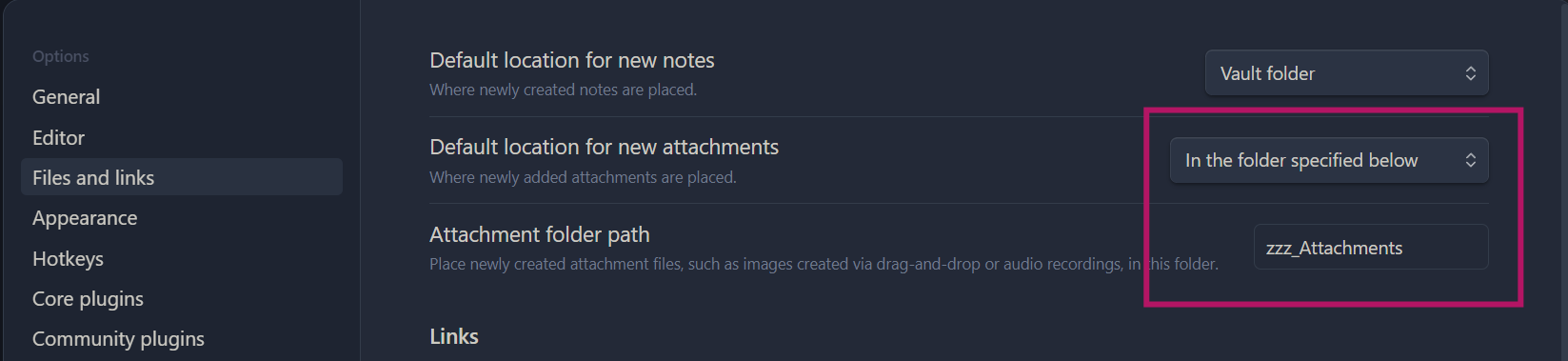
Set up the attachments folder (optional)
- Create an attachment folder (e.g.
attachmentsorzzz_attachments) - Settings → Files and Links
- Default location for new attachments: “In a folder specified below”
- Enter the folder name (must match exactly)
Change the editor theme
Obsidian comes with many different editor themes you can choose from. Change the theme like this:
- Open Settings (gear icon bottom left corner)
- Go to Appearance
- Under Themes, click Manage
- Browse and install a theme (you can always switch back)
Back to Overview