Step 1: Install the Tasks plugin
- Open Settings (gear icon bottom left)
- Go to Community plugins
- Click Browse
- Search for Tasks (it should be on the very top of the list, created by Clare Macrae et al.)
- Install and Enable the Tasks plugin
Step 2: Add some tasks to your notes
Now add 2–3 example tasks to your notes (not the daily notes, you can e.g. use one of your recipe notes here).
Any tasks are fine, you can just invent some.
Add due dates to the tasks (e.g. today or tomorrow).
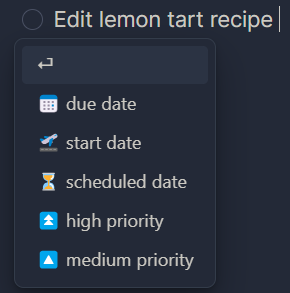
Add due dates with "Tasks"
You should see a drop down menu after the task that lets you add a due date like in the image below. You can add a due date by either of these methods:
- Select one of the suggested options
- Type a date
- Type a natural language date like “next sunday” and see if the plugin suggests the correct date
Step 3: Add the tasks query to your daily template
- Open your daily note template
- Find the section where your tasks should appear
- Add the following “Tasks” query block
```tasks
due on {{date}}
```
{{date}} will be replaced automatically with the date of each daily note.
Finding backticks ` (for the query)
This depends on your keyboard layout. Common options:
- US/UK keyboards: key left of
1(often shared with~)- Windows (many non-US layouts): key near
ShiftorEnter, or AltGr + key (varies by layout)- Mac (many non-US layouts): Option (⌥) + key (often the same key as
~)If it still doesn’t work: Search online for: “backtick key” + your keyboard layout + Windows/Mac
Test it:
- Check the due dates in your project note again → Find a due date for which you don’t have a daily note yet. If all tasks already have a daily note, just add a new task with a future due date
- Create the daily note for that due date
If all worked well, the task should now automatically appear in the newly created daily note.
Help: My tasks do not appear
To troubleshoot, check
- Corresponding due dates: Click into the Task query block in the daily note. Check the date there. Does it correspond exactly to one of the due dates of your tasks?
- If you get an error message: Click into the Task query block in the daily note and check if there is a type. The text should be exactly
due on 2026-02-01(or another date depending on the daily note you opened)
Optional tasks (for the fast ones)
You can do these in any order or skip them and take a break.
Modify the tasks query
The Tasks plugin allows you to change how tasks are displayed and filtered.
For these exercises:
- Modify the Tasks query in one daily note
- Observe what changes
- Keep what you like by adding it to your daily template
You may need to create a few extra example tasks or adjust due dates.
Compact display mode
- Add short mode to your Tasks query.
(replace the date with a date in your note)
```tasks
due on 2026-02-01
short mode
```
List overdue tasks
List all tasks that are overdue:
```tasks
due before 2026-02-01
```
Show all open tasks
```tasks
not done
```
Filter tasks by folder
Show only tasks from a specific folder.
Replace log with a folder that is in your vault.
```tasks
path includes log
```
Combine different queries
Try combining multiple options above.
Examples to try:
- Overdue tasks in short mode
- Tasks due today that are not done
- Tasks from your recipe folder that are due today
Update your template
If you found task queries that you like from the previous task, modify your daily template accordingly. Then create a few notes to test it.