Task: Introduction to RStudio
Change settings
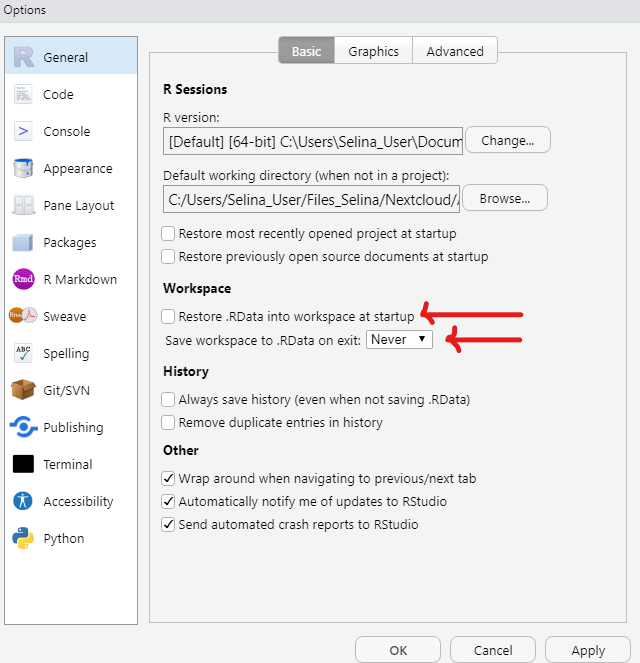
Before you get started, there is an important setting that you should change in RStudio. By default, RStudio saves your workspace when you quit. This means the next session starts with old data still loaded — which can cause confusing errors.
In RStudio go to Tools -> Global Options -> General and
- Remove the check mark for “Restore .RData into workspace at startup”
- Set “Save workspace to .RData on exit” to Never
Create an RStudio project
Create an RStudio project for this workshop:
- File -> New Project -> New Directory -> New Project
- Give it a name (e.g.
r-workshop) - Choose where to save it
- Click Create Project
Now have a look at the Files pane in RStudio (bottom right). You should see a folder that has only the .Rproj file in it.
Use the Files pane to create a basic folder structure in your project:
data/for data filesR/for R scripts
I don’t see my new folders
Sometimes you need to click the “Refresh” button in the Files pane (top right of that pane) to see the new folders you just created.
Create and run an R script
- Navigate into the
R/folder in the Files pane - Create a new R script: File -> New File -> R Script
- Copy the code below into your script and save it (
Ctrl/Cmd + S) - Run the code line by line using
Ctrl+Enter(Windows/Linux) orCmd+Return(Mac)
Don’t worry if you don’t understand the code yet — we will learn all of this during the workshop. For now, just observe what happens in the different panes (console, environment, plot) as you run each line.
# Look at the first rows of the built-in penguins dataset
head(penguins)

# How many rows and columns does it have?
nrow(penguins)
ncol(penguins)

# Summary statistics
summary(penguins)

# Create a variable
my_variable <- "Hello, RStudio!"

# Create a simple plot
plot(
  penguins$flipper_len,
  penguins$body_mass,
  xlab = "Flipper Length (mm)",
  ylab = "Body Mass (g)",
  main = "Penguin Body Mass vs Flipper Length",
  pch = 20,
  col = "steelblue"
)
Optional tasks (if you finish early)
You can do these in any order — or skip them and just take a break.
Add your own data to the project
- Find one of your own datasets (e.g. a spreadsheet, csv file, or something similar) on your computer
- Copy it into the
data/folder of your project
Open your project in the file explorer
You have to open your project in your file explorer (Finder on Mac, File Explorer on Windows) to copy the file into the data/ folder. You cannot copy files into that folder from RStudio. The path in the Files pane shows you where your project lives.
- In RStudio, check if you see the file in the
data/folder
Later, you can try to read this file into R.
Change the RStudio theme
- Go to Tools -> Global Options -> Appearance
- Browse through the different themes and choose one you like
- Click Apply to see how it looks (you can change it as many times as you like)
Close and reopen your project
- Close RStudio completely
- Find your project folder in your file explorer (Finder on Mac, File Explorer on Windows)
- Double-click the
.Rprojfile to open the project in RStudio again